StereoLicenser
Manual
A short reference for everyday work. Start with your role, or use the contents to find a task.
Getting started
Your login determines which menu items and products are available. Broker and Softwareprovider users work with their own vendor’s data; Developer users work with the product and configuration tools.
- Use the menu on the left to switch sections. Open a row’s details or edit button to view or change it.
- Use Save to apply changes. Cancel or closing an editor discards unsaved changes, unless an action explicitly confirms and saves them.
- Use the small copy button beside a license key to copy its complete value. Treat keys as confidential.
- Changes may be saved before publication to the licensing server succeeds. Read the result message and follow any publication retry instructions.
AI integration & automation
StereoLicenser provides an API for connecting AI assistants and automating license management and reporting. Access uses your existing user account and permissions. Contact us for integration details.
Check a license
Test licenses can check any supported license, including DigiStore, STL (broker), master and individual product licenses. Open Test licenses → Key, paste the full key and choose its Family if offered. Use Bundle test to simulate the software’s check with a specific product, build and trading account. For an STI-only test, account details are optional.
For an existing STL (broker) license, the simpler option is Verify license in its edit dialog. The saved product and account details are used automatically; you do not need to enter any additional information.
These checks only read existing license information. They do not create Instant licenses or change license or usage data.
Broker
Create an account license
- Open Licenses and choose New license.
- Enter the Client-ID and customer’s name. Select the product and enter the trading account numbers. Confirm each account with Enter, Space, comma or semicolon.
- Review the start date and any remarks, then choose Save. The application saves the license and attempts publication.
Use the same Client-ID for licenses belonging to the same customer. The number of permitted accounts and available products follows your vendor’s settings. Keep the billing factor at Standard unless there is a specific reason; other factors require an explanation in Remarks.
Find and maintain a license
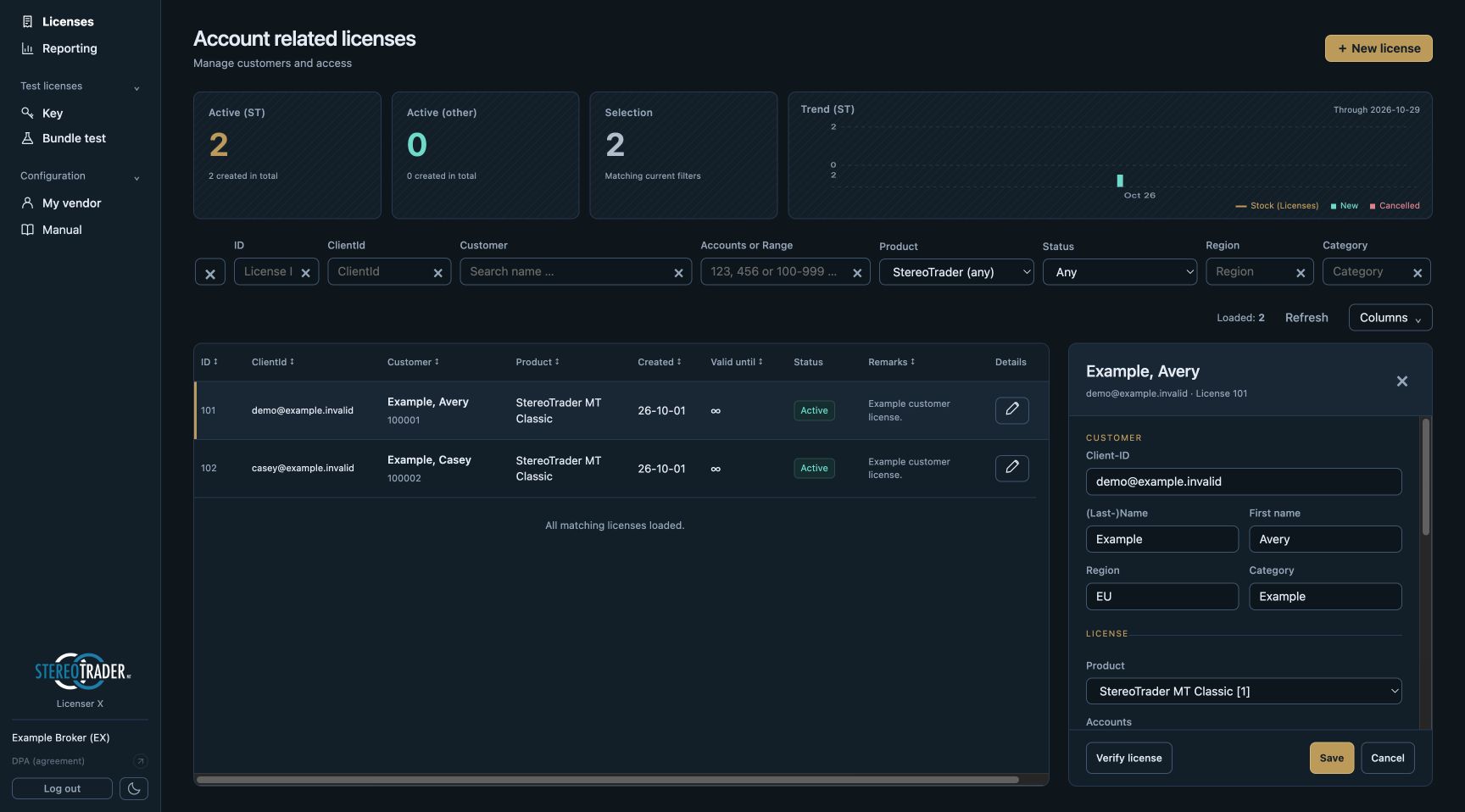
Filter by license ID, ClientId, Customer, Accounts, Product or Status. The × button clears the selection filters. Columns controls visible table columns. A single account search can match part of a number; multiple accounts and ranges such as 100-999 can narrow the search.
- Edit: open the license, change the necessary fields and save. Expired licenses are displayed for reference and cannot be extended or reactivated. To grant access again, create a new license. Use the Recreate action beside the expired license to prefill a new license with its customer, product and account details, review them and save. This creates a separate license; the expired record remains unchanged.
- Cancel: choose Cancel at the next possible date, review the proposed expiry and confirm. Confirmation saves the current edits and publishes the cancellation immediately. Access ends at the selected expiry, rather than at the cancellation request.
- Undo cancellation: before expiry, choose Un-cancel license and save.
- Block: enable Blocked and save to prevent access without deleting the license. Clear it and save to unblock.
- Verify license: checks the saved accounts against the licensing server. It checks account entitlement; another valid license for the same account and product can also grant access.
Reporting
If Reporting is available, select the product, evaluation and period. Read the evaluation’s description, then choose Run evaluation. Reports run only when requested. Use Download CSV for the full result; table pagination does not limit the export or totals.
A lengthy evaluation shows its progress. Reopening Reporting can reconnect to the existing run. Check its status before starting another calculation.
Please keep your contact details under My vendor up to date, especially the technical contact and email address. This helps us automatically reach the right person with maintenance notices and other operational updates. Review these details whenever your contact person changes.
Softwareprovider
Use account licenses when access belongs to trading accounts, or IP-Licenses when the customer should receive a direct product key independent of accounts and brokers. Account licensing is available when enabled for your vendor and follows the Broker workflow. Its optional Broker selection binds all accounts in that license to the selected broker.
Issue an individual product license
- Open IP-Licenses → New license and select the product. Only eligible Normal and Beta products are offered.
- Select a Family: Any allows all families of that product; Standard allows the standard family only. Other choices restrict access to that family.
- Enter the client details and, if useful, an internal Comment explaining the grant. Leave Expiry date empty for unlimited validity, or set a date that includes the whole day in UTC.
- The draft STI key appears as soon as you select a product and can be copied. Choose Save and publish to activate it; share it with the customer only after publication succeeds.
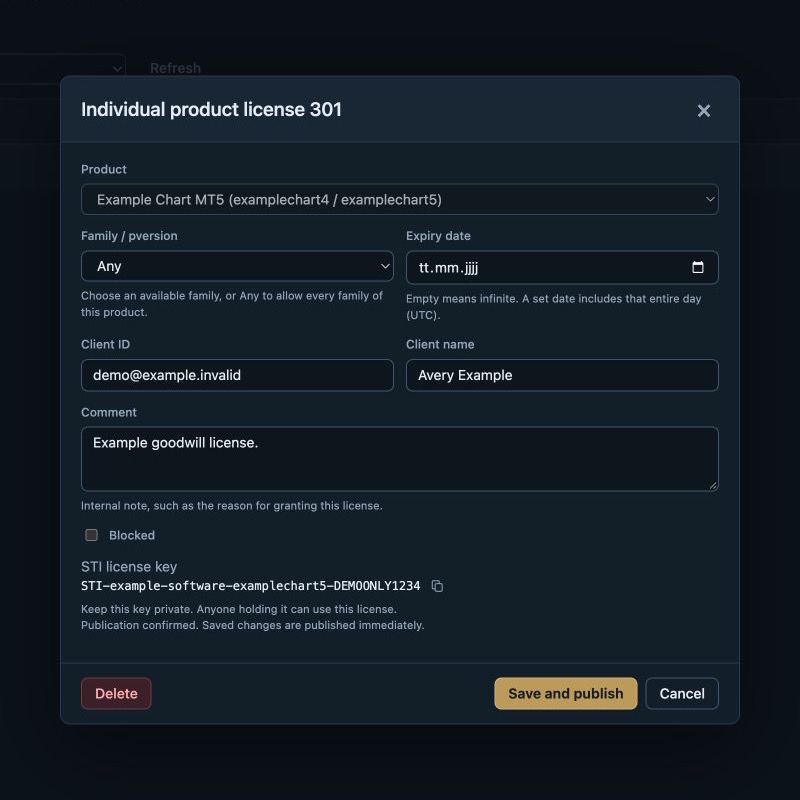
The key starts with STI-. It grants access to anyone holding it, so share it only with the intended recipient. Where corresponding MT4 and MT5 products are grouped, the license covers both listed products. The product selection is fixed after creation; family, expiry, client details, comment and blocking can still be edited.
To replace a key, open the license and use the small refresh button beside it. This prepares a new key; Save and publish revokes the old key and publishes the replacement. Cancel keeps the original key. Give the customer the new key after publication succeeds. Complete any pending publication before replacing the key again.
Save changes to republish the license. For a pending publication, open the saved license and choose Retry publication. Delete → Revoke and delete first revokes access on the licensing server and removes the record only after confirmation. If revocation fails, use the offered retry action.
Manage products
Open Configuration → Products. Filter by Family or search by name or PID, then open a product or choose New product.
- PID and STL product
- The PID identifies the technical product. The STL product links it to an account-license entitlement; assigning it does not itself grant customers a license.
- Version family and Parent
- Family remains independently selectable. A Parent must belong to the same vendor and family. The product uses its parent’s version and builds and is not listed separately in STIM.
- Version / Builds
- Maintain the version and Minimum, Stable and Latest build numbers. A product with a Parent inherits these values.
- Product type
- Normal and Beta are regular products. Patch, Common files and Developer / test serve other purposes and are not offered for new IP-Licenses.
- STIM installation and product information
- Set the platform, deployment folder, description and relevant links. An empty Product folder uses the PID.
- Broker rules
- Rules distinguish Live, Demo and Tester accounts, with and without a license. Preserve the established rule syntax: an empty rule and Not configured have different meanings.
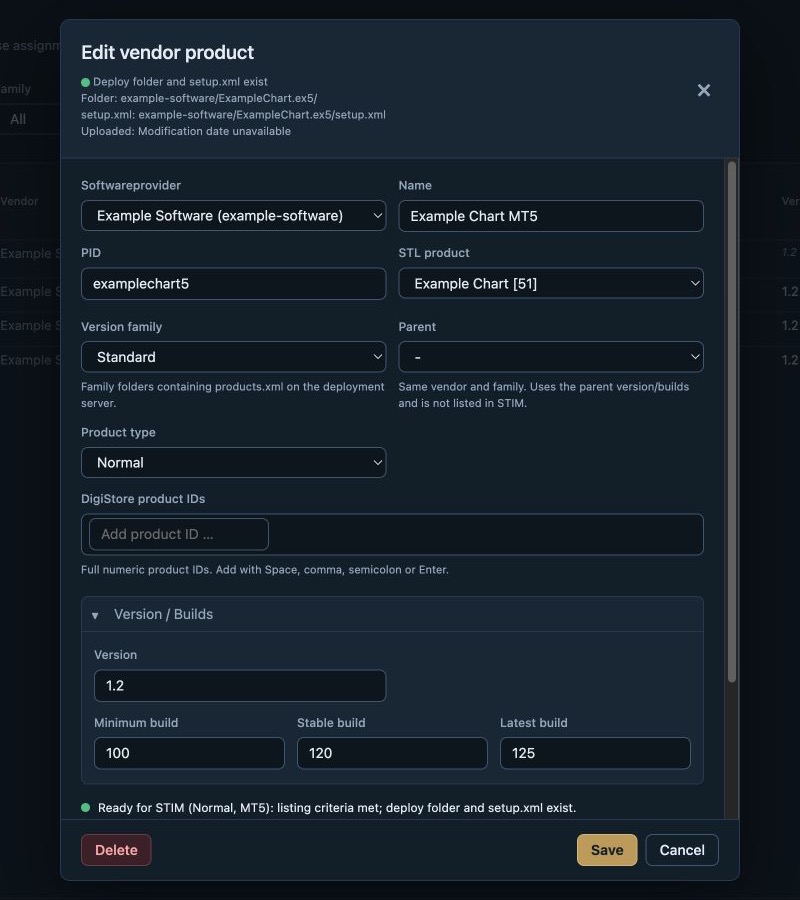
Save applies product settings to the database. Automatic server synchronization normally makes them available to STIM and license/build checks within one minute. Saving metadata does not upload a product binary.
Vendor settings and DigiStore
My vendor contains your contact information and available DigiStore settings. Keep your contact details current for maintenance and operational notices. Maintain the DigiStore product IDs in the product editor. Blocked order IDs in My vendor prevent the specified orders from granting access after synchronization; enter complete IDs rather than partial matches. Saved DigiStore settings normally reach the licensing server within one minute.
Reporting appears when evaluations are assigned to your vendor. Select an offered evaluation and read its description before running it.
Developer
The Developer role provides product configuration and license testing. It does not provide customer license management or Reporting.
- Products: manage technical products across softwareproviders. Use the product field reference above. A product can be marked as deleted; it will no longer be published as an active product. Referenced products may prevent deletion.
- STL products: maintain account-license product IDs, names and PID assignments. The first PID remains primary. Existing assignments may be referenced by many technical products and licenses.
- Vars: edit shared runtime settings in their existing sections. Use each setting’s description and preserve the expected value format. Save stores the changes; automatic synchronization normally applies them within one minute.
- Test licenses: use Key for a complete license code, or Bundle test for product/build/account combinations. These checks remain read-only.
Quick help
- Saved, but publication failed
- The saved data may be newer than the licensing server’s copy. Use the offered retry action on that saved license instead of creating another license.
- A product or action is missing
- Check the selected Family and filters. Availability also depends on your role, vendor configuration and product type. Contact your technical contact if the expected option remains unavailable.
- A license check fails
- Check the complete key, product PID, Family and build. For account licenses, also check account number, broker and account type. Confirm publication and synchronization before testing again.
- The record changed while editing
- Reload its current details and reapply the intended change. This protects another user’s saved work.
Reliability & data protection
This portal manages licenses and publishes them to a separate, decentralized licensing infrastructure. StereoTrader products do not connect directly to the portal or its database: they check published license data through dedicated licensing services. Existing published licenses can therefore still be verified when the management portal or its database is temporarily unavailable.
This decentralized design has enabled us to maintain 100% uptime for license verification since 2018.
For GDPR (General Data Protection Regulation) and the handling of personal data, refer to the Data Processing Agreement, also available as DPA (agreement) in the menu. Keep customer information and internal comments limited to what is needed for license administration.
Usage logging supports license usage analysis and reporting. Separately, a license changelog records saved license changes made through this portal, including who made the change, when it was made and which values changed. This provides a traceable basis for investigating changes and preparing verification reports. The changelog covers changes recorded since its introduction; it does not reconstruct earlier changes or changes made outside this portal.